As an online teacher, your camera is your classroom. Students see your face for hours every week. Therefore, a good webcam setup for online teaching is not vanity – it builds trust, keeps attention and makes you look professional. In this guide, you will learn how to set up your camera once and look the same in every lesson.
Quick answer
Teach facing a soft light, keep the camera at eye level and set your camera values by hand. Save one profile per room or time of day, and let it load automatically when you start your teaching tools.
The worries many online teachers have
- “My image looks different in every lesson.”
- “I teach from home, the office and sometimes on the road.”
- “Before class there is no time for technical problems.”
- “Parents and students might think I look unprofessional.”
If you recognize yourself, good news: all of this can be solved with a simple routine. Moreover, you only have to do the work once.
Step 1: Light that works all day
Sit facing a window or place a soft lamp in front of you. In addition, avoid ceiling light directly above you, because it creates shadows under your eyes. For evening lessons, a small LED panel or desk lamp is enough.
Step 2: Camera position
Raise your camera to eye level. Then leave a little space above your head. As a result, students feel like you are talking to them directly.
Step 3: Camera settings for online teaching
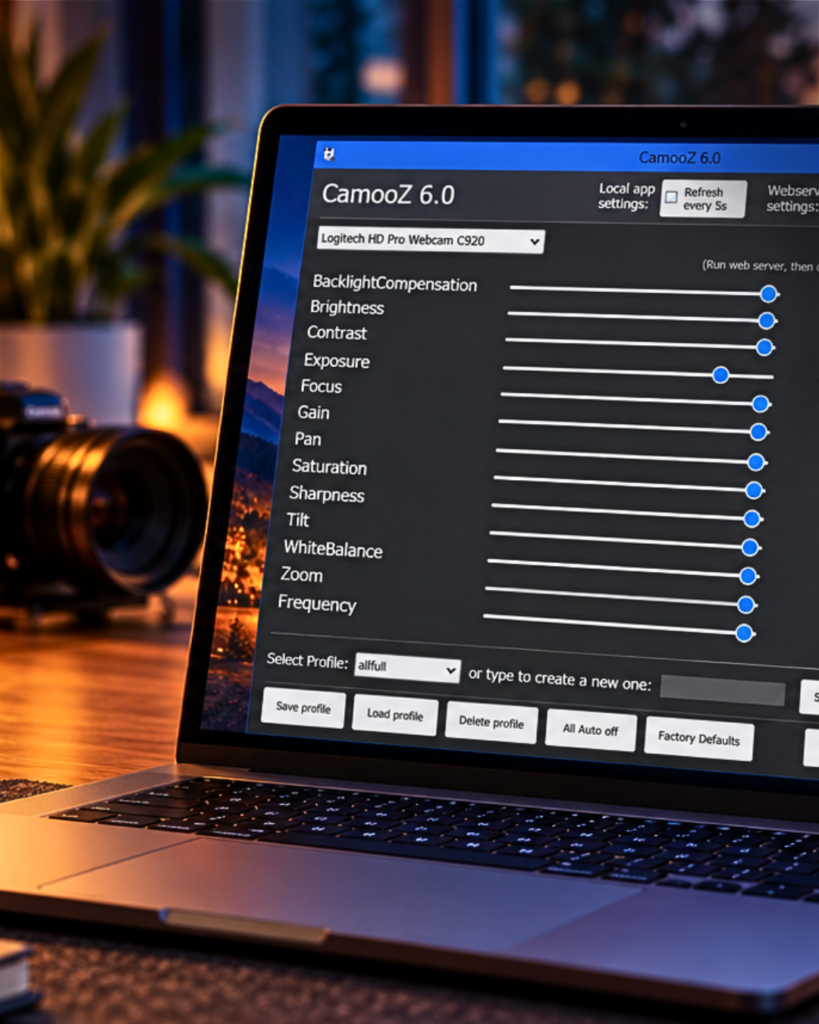
Most webcams are set to auto by default. That is why the picture changes when you move or hold up a book. Instead, turn off autofocus and auto exposure and set them by hand. You can do this easily with CamooZ, without any technical knowledge.
Step 4: One profile per room
Here is the real time-saver. Save a profile for each place where you teach, for example “Living room – morning”, “Office” or “Evening lamp”. Afterwards, you just load the right profile, and your image is perfect in seconds.
Some teachers go one step further. On the OBS forum, one user reports that their profiles load automatically when the programs for their classes start. CamooZ supports this with autoload and command line parameters.
Step 5: A 60-second check before class
- Open your video app a minute early.
- Load the right profile.
- Check light and framing.
- Start your lesson relaxed.
Is it worth it for a teacher?
The free version already lets you fine-tune your camera. The full version with profiles costs 4.99 USD once. In other words, it pays off after the first lesson in which you do not lose five minutes with camera problems.
FAQ: webcam setup for online teaching
What is the best webcam setup for online teaching?
Soft light from the front, camera at eye level, manual camera settings and one saved profile per room or time of day.
Do I need an expensive webcam for teaching?
No. A normal HD webcam with good light and the right settings is enough for most online lessons.
Does CamooZ work with Zoom, Teams and Google Meet?
Yes. CamooZ sets the camera itself, so every app that uses the camera benefits.
I teach from different places. Does that work?
Yes. Save one profile for each place and switch in one click.
Is it difficult to use?
No. You move sliders, look at the preview and save. You can test it for free first.
Teach. Don’t troubleshoot.
Set up your camera once and look professional in every lesson.