You finally found the perfect camera look. Then you restart your PC, and everything is gone. If you want to save webcam settings in Windows 10 or 11, you are not alone – it is one of the most common webcam questions on the internet. In this guide, you will learn why Windows forgets your settings, which built-in options exist and how to save and restore your camera look with one click.
Quick answer
Windows 11 can store a few basic defaults (like brightness and contrast) under Settings → Bluetooth & devices → Cameras. However, it cannot save exposure, focus or white balance as profiles. To save webcam settings completely and switch between different looks, use a tool like CamooZ.
Why Windows does not save webcam settings
Most webcams store their settings only while they are running. As soon as the camera restarts, it often loads its factory values again. In addition, every app that opens the camera can change its values. For example, Zoom, Teams, OBS or the manufacturer software may all write different settings to the same camera.
On top of that, the classic Windows camera dialog is very old. You cannot open it directly. Instead, you need another program, for example the “Configure Video” button in OBS. As a result, many people adjust their camera again and again before every call.
Option 1: Save webcam settings with the Windows 11 camera page
Windows 11 has its own camera page. According to Microsoft, it offers basic controls such as brightness, contrast, saturation and sharpness, depending on your camera. Changes are saved as new default settings for that camera.
- Open Settings and go to Bluetooth & devices → Cameras.
- Select your camera under “Connected cameras”.
- Adjust the sliders while you watch the preview.
- Close the page – your changes are saved as defaults.
This is a good start. However, it has clear limits. First, it only offers basic sliders on most cameras. Second, apps may still apply different settings when they start the camera. Third, there are no profiles, so you cannot switch between a daylight look and an evening look. Finally, Windows 10 does not have this page at all.
Option 2: Save webcam settings as profiles with CamooZ
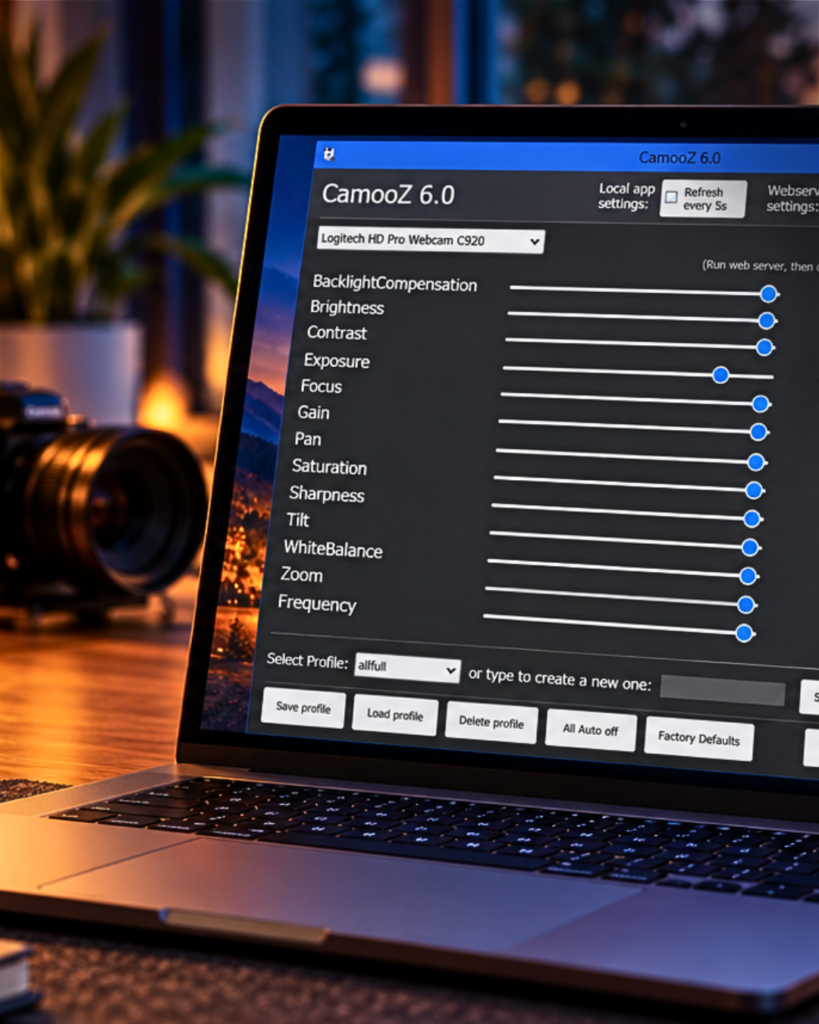
CamooZ is a small Windows tool by developer Falti. It opens every setting your camera offers – including exposure, focus, white balance and zoom. In the full version, you can save webcam settings as profiles and load them again whenever you need them.
- Download CamooZ for free and start it.
- Select your camera and adjust the sliders until the image looks perfect.
- Lock the sliders you never want to change by accident.
- Save a profile (full version), for example “Daylight” or “Evening”.
- Load the profile with a click, a hotkey, your Stream Deck or automatically at start.
Because CamooZ restores your values on demand, it does not matter if another app changed them. You simply load your profile again, and your look is back.
Windows camera page vs. CamooZ
| Feature | Windows 11 camera page | CamooZ |
|---|---|---|
| Brightness & contrast | Yes | Yes |
| Exposure, focus, white balance | Usually no | Yes, if your camera supports it |
| Several profiles | No | Yes (full version) |
| Hotkeys & Stream Deck | No | Yes (full version) |
| Works on Windows 10 | No | Yes |
Common worries – and honest answers
“Can I break my webcam with wrong settings?”
No. These are normal camera controls, the same ones your apps use. If something looks wrong, press Ctrl+Z in CamooZ or reset the camera in Windows. Therefore, you can experiment without risk.
“Is a download from a forum safe?”
CamooZ is published on the official OBS Project forum, where it has been downloaded more than 60,000 times since 2021. Moreover, the developer updates it regularly and answers questions there.
“I am not technical. Will I manage?”
Yes. If you can move a slider, you can use CamooZ. Also, you can test everything for free before you decide to buy.
FAQ: save webcam settings
How do I save webcam settings permanently?
Windows 11 stores basic defaults on its camera page. For all settings and several looks, save them as profiles in CamooZ and set one profile to load automatically when CamooZ starts.
Why do my webcam settings reset after a restart?
Many cameras load factory values when they restart, and apps can overwrite them. Read our guide on why webcam settings keep resetting for all causes.
Can I save different settings for day and night?
Yes. With the CamooZ full version you can save as many profiles as you like and switch between them in one click.
Do I need OBS to save webcam settings?
No. CamooZ works on its own and helps with Zoom, Teams, Google Meet, recordings and streaming.
How much does it cost?
CamooZ is free to try. The full version with profiles costs 4.99 USD once via PayPal (plus tax) – no subscription.
Ready when you are
Set your camera once and never do it again. Try CamooZ free today.