Since Windows 11, Microsoft offers its own camera page. However, many people do not even know it exists. In this guide, you will learn where to find the Windows 11 camera settings, what you can change there and where their limits are. Finally, we show when a free tool gives you more control.
Quick answer
Open Settings → Bluetooth & devices → Cameras and select your camera. Depending on the camera, you can change brightness, contrast, saturation, sharpness, rotation, HDR and Windows Studio Effects. Profiles, exposure, focus and white balance are usually missing.
Where to find the Windows 11 camera settings
- Open Start → Settings.
- Go to Bluetooth & devices → Cameras.
- Select your camera under “Connected cameras”.
- Windows starts a preview and shows the available controls.
Alternatively, you can also type “manage cameras” into the Start menu search.
What the Windows 11 camera settings can do
According to Microsoft, the available controls depend on your camera and your Windows version. Typical options are:
- Brightness, contrast, saturation and sharpness
- Rotation for some external cameras
- Video HDR on supported cameras
- Windows Studio Effects on supported devices
- Resetting a camera to its default settings
Windows then stores your changes as the new default settings for that camera and user account.
The limits of the Windows 11 camera settings
- No profiles: you cannot save a daylight and an evening look.
- Few controls: exposure, focus and white balance are usually missing.
- Apps can override: Microsoft notes that apps may apply different settings while using the camera.
- Not every camera appears: for example, cameras using DirectShow technology may be missing.
- Windows 10: the page does not exist there at all.
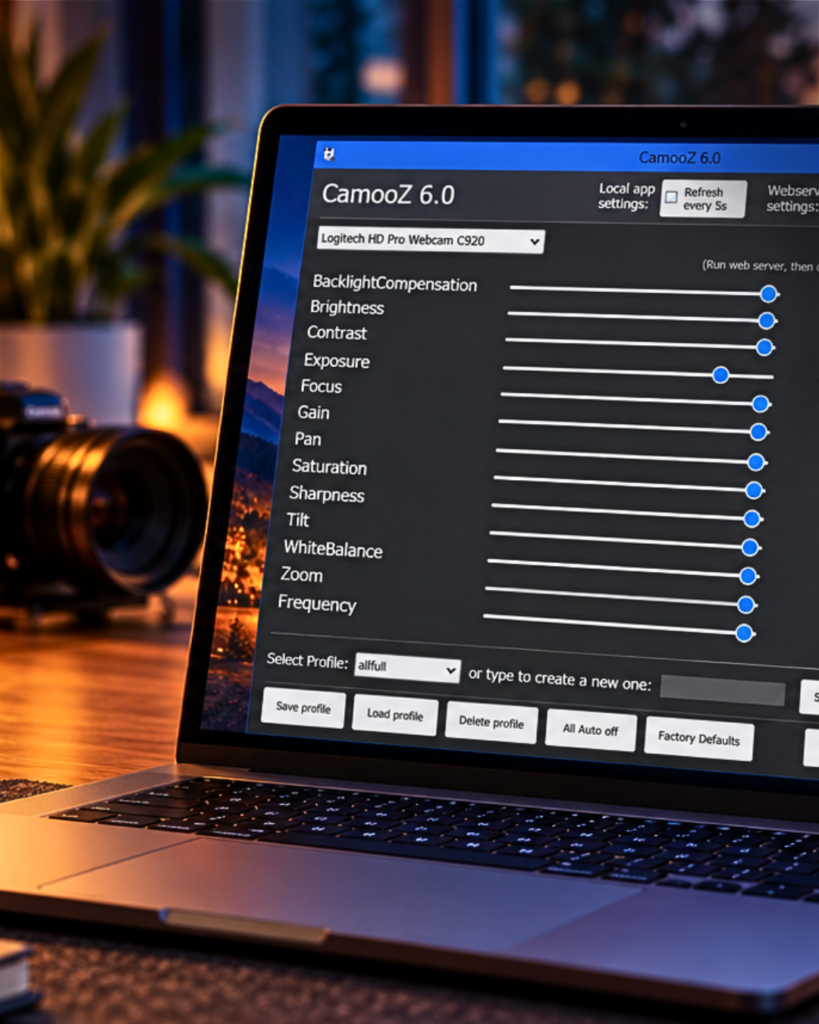
Windows 11 camera settings vs. CamooZ
| Feature | Windows 11 | CamooZ |
|---|---|---|
| Brightness & contrast | Yes | Yes |
| Exposure, focus, white balance | Usually no | Yes, if supported by the camera |
| Sort, rename & lock sliders | No | Yes |
| Profiles | No | Yes (full version) |
| Hotkeys, Stream Deck, autoload | No | Yes (full version) |
| Windows 10 | No | Yes |
When is Windows enough – and when not?
So if you only need a little more brightness, the Windows page is enough. However, if you want full control, several looks or settings that you can restore anytime, CamooZ is the better choice.
FAQ: Windows 11 camera settings
Where are the camera settings in Windows 11?
Settings → Bluetooth & devices → Cameras. Then select your camera.
Why is my camera not shown in Windows 11 settings?
Some cameras, for example IR cameras or DirectShow cameras, do not appear on this page.
Can I change exposure in Windows 11?
Usually not on the camera page. CamooZ shows exposure if your camera supports it.
Are Windows 11 camera settings saved?
Yes, as defaults. However, apps can still apply different settings, and there are no profiles.
More than the basics
Get every slider your camera offers – and save them as profiles.